
Help and FAQ
How to work with CompareDesk.
An overview of the program interface and each function, explained step by step.
CompareDesk is designed so that you can start immediately without training. You place two versions of a document, choose a few options if needed and receive a clear result that you can edit further in Word or share as a PDF. The entire comparison runs on your computer; your documents do not leave your workstation.
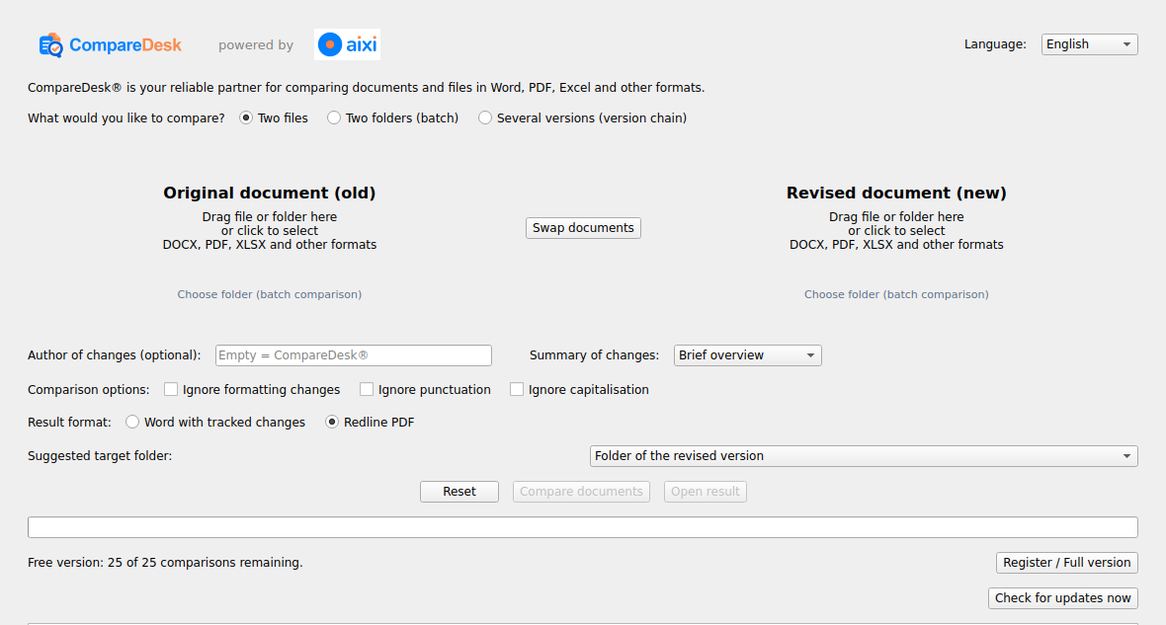
Comparison in four steps
Drag the original version into the left field or select it via the button.
Place the new version in the right field. The arrow between the fields swaps the two.
Choose the output: Word with tracked changes, comparison PDF, or both.
Click Compare. The progress log shows every step of the work.
The functions in detail
Word with tracked changes
Genuine revisions that you accept or reject individually in Word.
Comparison PDF
Colour comparison for reading and forwarding, with an appendix of the changes.
PDF and scans
Including scanned deeds; text recognition runs entirely on your computer.
Excel and spreadsheets
Sheet by sheet and cell by cell; every finding names the cell reference.
Batch comparison
Two folders instead of two files; the pairs are formed and submitted for confirmation.
Version chain
Several versions ordered chronologically and compared successively.
Access from Explorer
Two context menu entries save the file selection dialog.
Invocation without a window
Command line with machine-readable output for your own workflows.
Important note on the result
The comparison takes place at text level. Scanned documents without a text layer are opened up by text recognition running locally; differences that rest solely on the recognition are held back, whereas figures, dates and amounts are compared character by character. There the result depends on the quality of the original and may be incomplete. A comparison merely depicted visually in a PDF is treated as ordinary text. Always examine the result before releasing legally binding documents; it does not replace the responsible review by a qualified person.
Which file formats can I compare?
Word files (DOCX, DOC), RTF, TXT and PDF, as well as workbooks in the XLSX, XLSM, XLS, ODS and CSV formats. You receive the result as a Word file with tracked changes or as a comparison PDF; when workbooks are compared the result is delivered as a workbook.
Are my documents uploaded?
No. The comparison runs entirely on your own computer. Your documents do not leave your workstation.
How does the free plan work?
You may carry out twenty-five complete comparisons free of charge and without registration, with every function: single comparison, batch comparison and version chain. A batch run or a version chain counts as a single comparison. Thereafter a licence unlocks unlimited use.
Is there a macOS version?
CompareDesk is currently available for Windows. A macOS version is in preparation.
What are the system requirements?
CompareDesk requires Windows 10 from version 1809 or Windows 11 in the 64-bit edition. Word and Excel need not be present; the Word file with tracked changes and the comparison PDF are produced without additional software. Microsoft Word or, alternatively, LibreOffice is needed only for the legacy formats DOC and RTF, because these have to be converted first.
How is formatting handled?
With Word files (DOCX) the formatting is largely preserved, including font, size, bold, indentation, tables, headers and footers and the numbering. From PDF originals the font, size, italics and indentation level are taken over and tables are rendered as tables again; there the presentation is a reconstruction approximating the original. Pure formatting changes form a category of their own and do not mix with the text changes. Watermarks and background stationery are recognised and kept out of the compared text.
How do I compare a Word document with a PDF?
Place both files in the two fields; the formats may differ. If one side is a Word file, it serves as the format-true carrier of the result, so numbering, tables and headers are preserved.
Can CompareDesk compare scanned documents?
Yes. Scanned PDF files without a text layer are read before the comparison by text recognition that works entirely on your computer. Differences stemming from recognition alone are held back; numbers, dates and amounts are checked exactly.
How do I compare many documents or whole folders at once?
With the batch comparison: place one folder in each field. CompareDesk forms the pairs from the file names, presents them for confirmation and compares pair by pair. The result is an overview with one row per pair and an individual report for each.
Can I compare several versions of the same document in sequence?
Yes, with the version comparison: place all versions in one field. They are arranged in time, every transition is compared, and a version history shows which version introduced each clause and which one removed it.
How can I prove which versions were compared?
Every output states the SHA-256 checksum of both files and carries a signed comparison certificate that is embedded in the output itself and also stored alongside it. With the command CompareDesk verify it can be checked at any time without a network connection; it proves that exactly these files were compared at this time with this result.
Can I use CompareDesk alongside another comparison tool?
Yes. CompareDesk is a stand-alone Windows program without an add-in; it does not interfere with Word or Excel and can be run alongside any other tool. Whether it meets your requirements is best checked with your own documents; the first twenty-five comparisons are free.
Is the document comparison GDPR-compliant?
The documents are never transmitted to a server, neither for the comparison nor for text recognition; there is no processing by third parties. The only outbound connection is for the licence check and the search for a new program version. Details are in the privacy policy.
Can I start the comparison from Windows Explorer?
Yes. The context menu of the supported file types and of folders offers the entries "Remember as original version" and "Compare with CompareDesk". On Windows 11 they appear under "Show more options". The comparison can also be run from the command line.
office@comparedesk.eu