
User guide
CompareDesk step by step
This guide takes you from installation to the finished comparison and explains every item the program reports.
No prior knowledge is required. If you have ever opened two files, you will manage with CompareDesk.
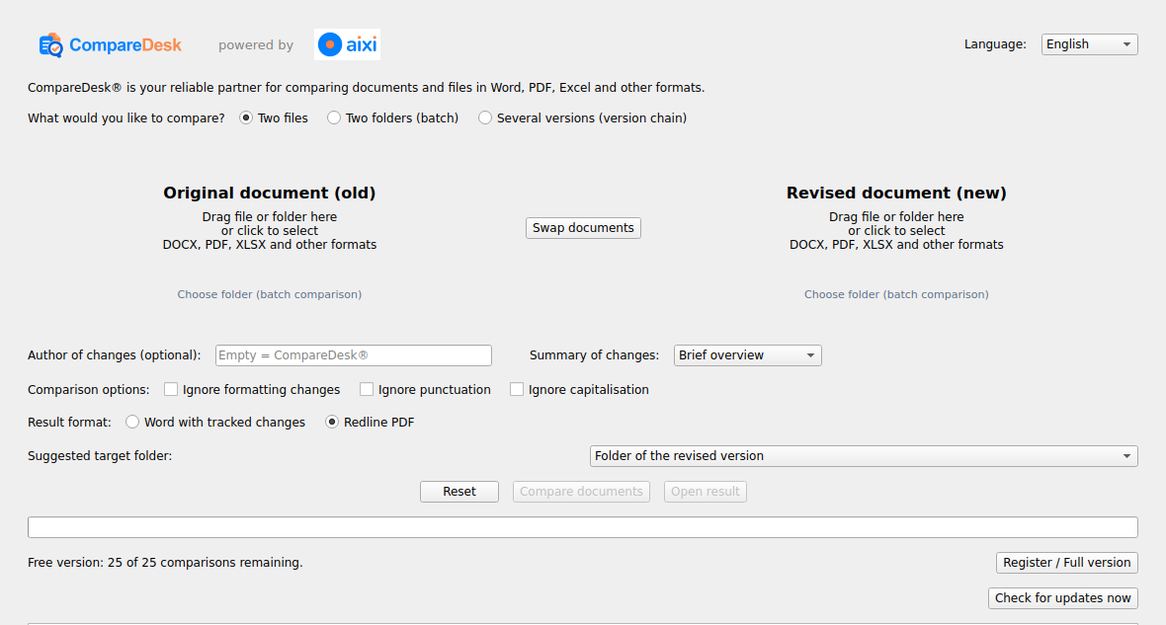
1. What CompareDesk is for
CompareDesk sets two versions of a document side by side and reports insertions, deletions and moves. The program is built for material in which every word matters: contracts, articles of association, foundation deeds, register extracts and shareholding lists.
- You receive the result either as a Word file with tracked changes or as a colour redline PDF.
- CompareDesk is a stand-alone Windows program and requires no add-in for Word or Excel.
- Your documents never leave your computer.
2. Installation and first start
CompareDesk is delivered as a package and is set up in moments. From the Microsoft Store the Install button is all it takes. If you obtain the program from our website, download the file CompareDesk.appinstaller and open it with a double click; the Windows App Installer states the publisher and the version and installs the signed package. Neither a separate setup program nor administrator rights are required.
- On first start you choose the interface language. Nine languages are available.
- The free edition allows 25 full comparisons. After that, entering a licence key is enough; no reinstallation is required.
- Windows 10 from version 1809 or Windows 11 in the 64-bit edition is required. Word and Excel need not be present on the computer.
- Windows installs new versions automatically, whether you obtained the program from the Store or from our website.
- Checking by hand: at the foot of the window sits the button “Check for updates now”. In the package edition it leads to installation via the App Installer, in the stand-alone edition to the setup program. Your activation is retained in either case.
3. Your first comparison, step by step
The window leads you from top left to bottom right. The numbers in the illustration correspond to the steps below.
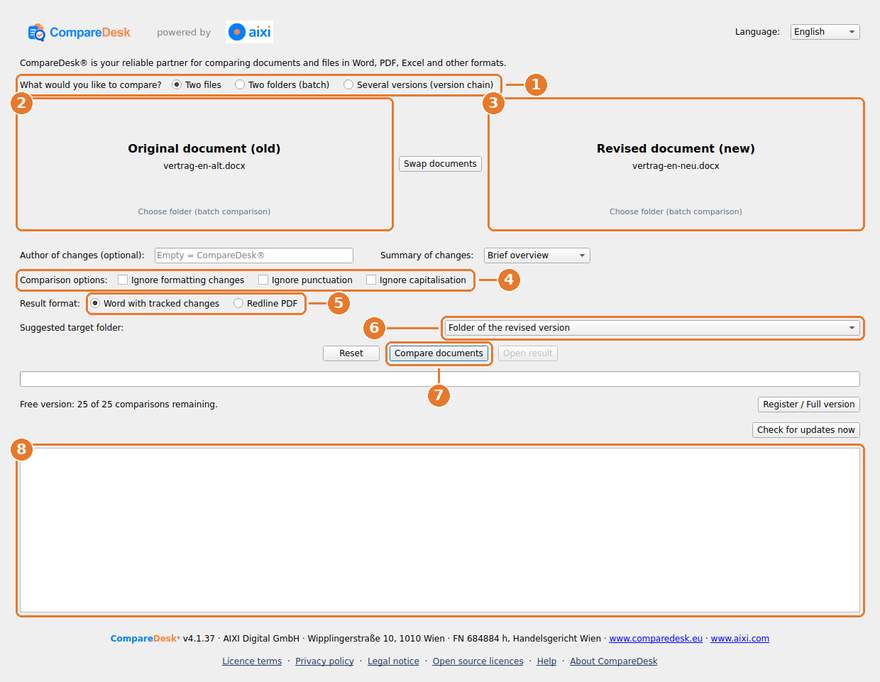
- Number 1: First choose what you wish to compare, namely two files, two folders in a batch comparison or several versions as a version chain. The fields below follow that choice.
- Number 2: Drag the original version into the left field, or click the field to select it.
- Number 3: Place the new version in the right field. The button Swap documents exchanges the two.
- Number 4: Determine what is to be disregarded, namely formatting changes, punctuation or capitalisation. With two workbooks the button for the settings of the spreadsheet comparison appears here as well.
- Number 5: Choose the output format, that is Word with tracked changes or a redline PDF. With two workbooks the result workbook takes the place of the Word file.
- Number 6: Check the suggested target folder. The default is the folder of the comparison version.
- Number 7: Click Compare documents. The result file is named CompareDesk old vs new.
- Number 8: The progress log shows every step of the work. After the run, the button Open result opens the file directly.

4. Reading the result
The colour scheme is the same in all outputs, so you only need to learn it once.
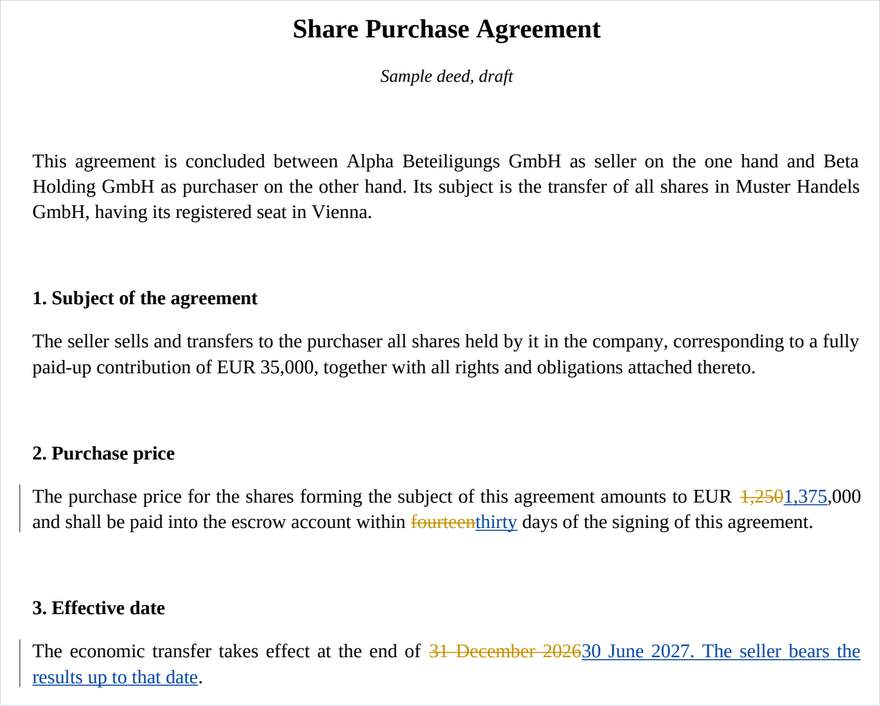
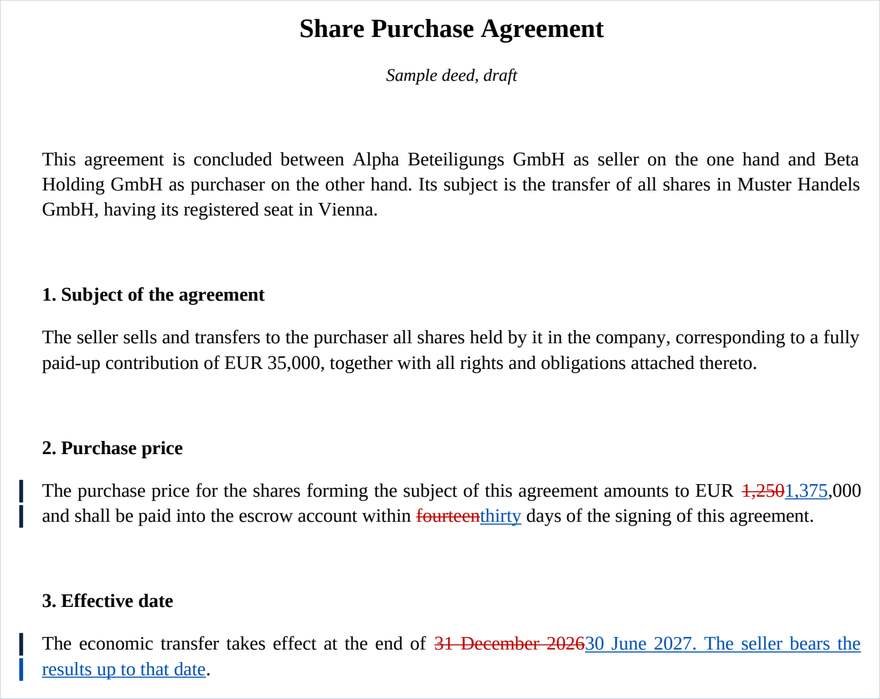
- Blue underlined means inserted, red struck through means deleted.
- Green marks a move: the same wording appears at a different place.
- In the Word file these are genuine tracked changes. You can accept or reject each one individually.
- A change of the outline number is reported as such and not as a text change, so a mere shift in numbering does not appear as a change of substance.
- A change of formatting, such as bold or italics, forms its own category and does not mix with the text changes.
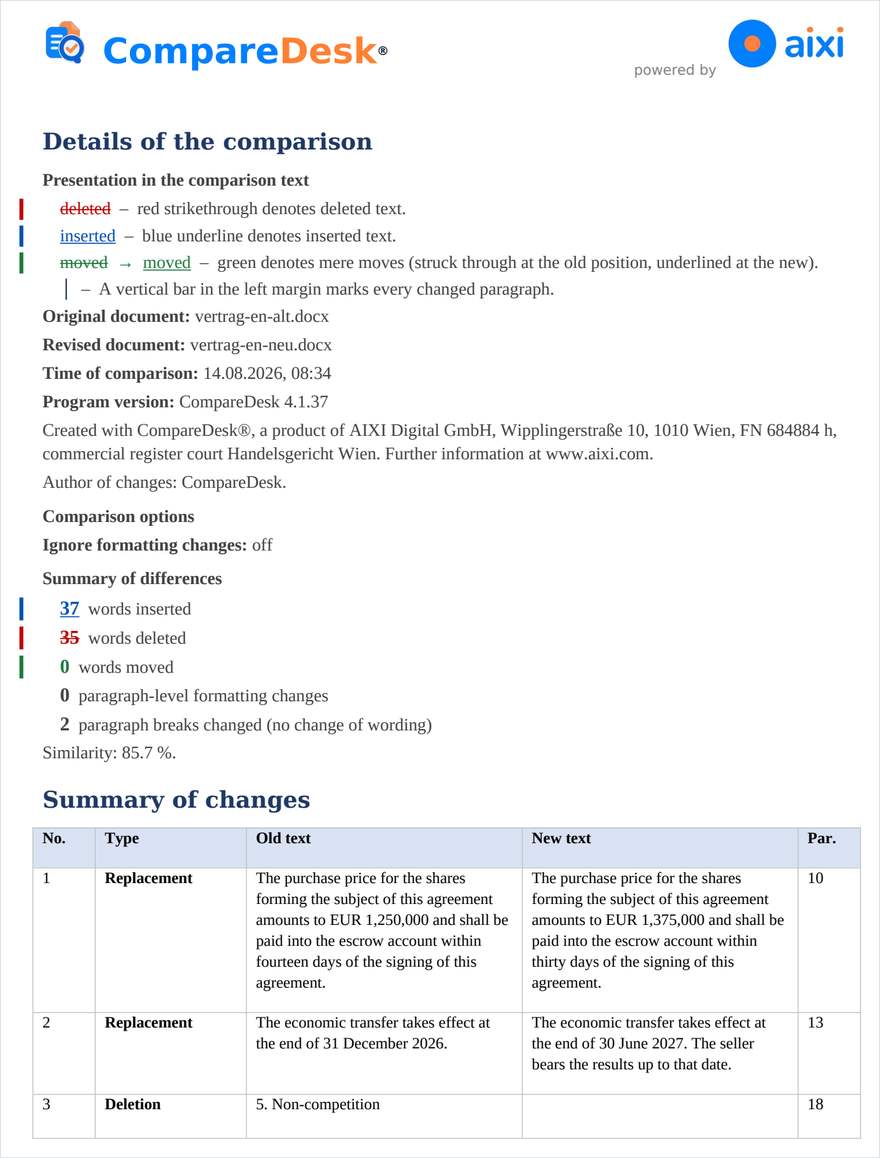
- The report states at the beginning the number of changes per category and the degree of correspondence. The degree is an indication, not a judgment on materiality.
- Related deviations within one sentence are bundled into a single finding. You read the change in its sentence context rather than as a series of isolated word fragments.
4.1 The Word file with tracked changes
These are genuine Word revisions, not merely coloured text. You can accept or reject each change individually under Review in the ribbon and produce the clean version directly from it.
4.2 The redline PDF
It is intended for reading and forwarding. The text appears in the layout of the original, the changes are marked in colour, and at the end there is a list of all findings with their location.
4.3 The schedule of deviations
Every output ends with a schedule. It states the particulars of the review, the number of changes by type and then each individual deviation by type, former and new wording and paragraph number. It is intended as a working basis for the review and may be passed on unaltered.
4.4 A figure that often raises questions
The degree of correspondence is measured by wording, not by legal significance. A comparison at 99 per cent may contain a single, decisive change. What matters is always the review of the findings, not the figure.
5. The quickest route via Windows Explorer
At first start CompareDesk adds two entries to the Windows Explorer context menu. You need not set anything up. This lets you compare two files without opening the window first.
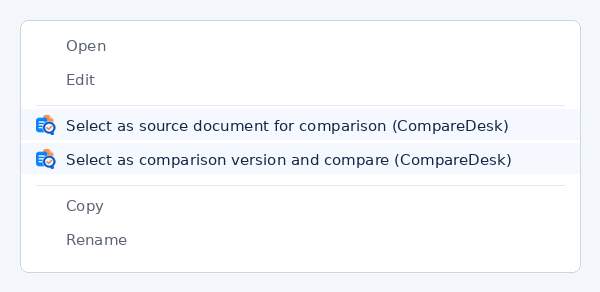
- Right-click the original version and choose Select as source document for comparison (CompareDesk). Under Windows 11 the entry may appear only under Show more options.
- Then right-click the second file and choose Select as comparison version and compare (CompareDesk). CompareDesk opens with both versions and begins the comparison.
- If you select both files at once and choose either entry, a single window opens with both versions. Two windows do not appear.
- The remembered source version stays noted for eight hours, that is one working day. After that you begin again with the first entry.
- If an entry is missing, or leads to the question which program should open the file, the About dialog repairs it with the button Check Explorer entries.
6. Several documents at once
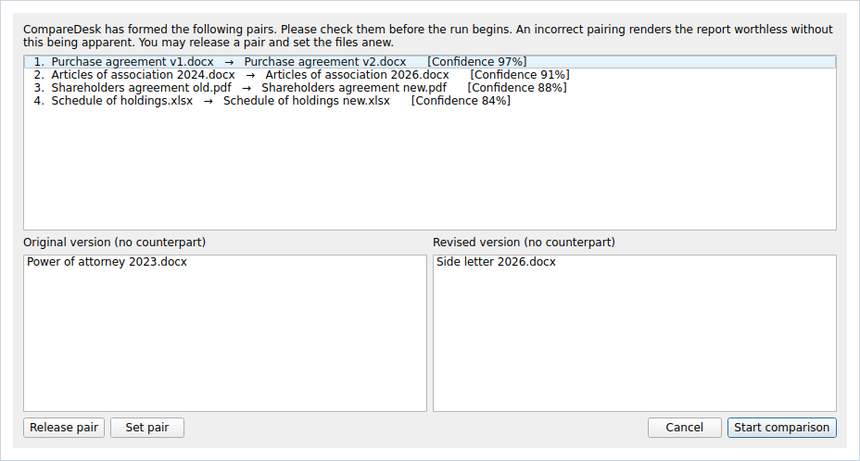
If you place two folders in the fields instead of two files, CompareDesk forms the pairs from the file names and presents them for confirmation. Batch operation and the version chain are reserved to the licensed version; they are not available in the free version.
- A batch run counts as a single comparison for consumption purposes, however many pairs it comprises.
- The version chain orders several versions of a document chronologically and compares them successively, version by version.
- The proposed pairing is to be checked. It rests on the file names and can go wrong; CompareDesk does not relieve you of that check.
- Files without a counterpart are listed separately in the overview. In a data room these are precisely the more important item.
6.1 Batch comparison of two folders
The result consists of an overview table with one row per pair and the individual reports in a subfolder named after the mode and the date of the run. From every row a click leads to the corresponding report.
6.2 Version chain
If you select several versions of the same document at once, CompareDesk orders them chronologically and compares them successively, the first against the second, the second against the third and so on. You thereby read the entire history on one page.
7. Special material
Not every item comes as a clean Word document. CompareDesk is equipped for the remaining cases.
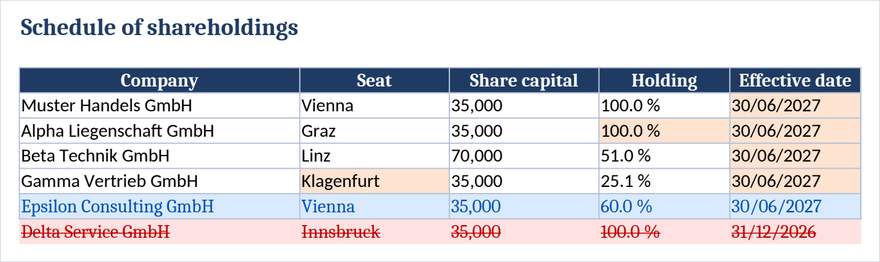
- CompareDesk treats spreadsheets, scanned documents and PDF originals each in its own way; the subsections below set out the details.
- If a PDF was printed from Word with visible change markup, struck-through text is treated as deleted; comment balloons in the margin do not enter the body text. Both are expressly noted in the progress log.
- If a source file already bears visible change markup or comments, the progress log points this out expressly and states the extent of what was excluded.
7.1 Spreadsheets
The comparison runs sheet by sheet and cell by cell. For every deviation the report states the sheet, the cell reference and the heading of the column, so that the place can be found again without searching. Value, formula, number format and cell formatting are covered, as are sheets, rows and columns that have been added or removed. Two cells holding the same value in different notation, say 1,000.00 and 1000, do not count as a change. You receive the result as a workbook with one row per finding and, if you wish, as a PDF.
7.2 Scanned documents
If a version exists only as an image, CompareDesk opens it up by text recognition and says so in the progress log. Differences that rest solely on the recognition are held back; figures, dates and amounts are excluded from that leniency and are compared character by character. Dotted fill lines, stamps and signatures on notarial deeds are read by the recognition as letter debris; such readings enter neither the text nor the findings. The result is the redline from the recognised text, in which deletion and insertion stand side by side in full wording.
7.3 PDF originals
From a PDF original CompareDesk takes over the typeface, that is font, size, italics and indentation level, and renders tables as tables again so that the assignment of columns is preserved. Multi-column layout is recognised and merged into the correct reading order; recurring headers and footers with page numbers are disregarded.
8. The settings
The defaults are chosen for legal use and normally need no change. Among other things you can exclude capitalisation, punctuation and formatting from the comparison and control text recognition and its language.
- Formatting, punctuation and capitalisation can each be excluded from the comparison directly in the window.
- Text recognition can be switched off and its language fixed; by default the language is detected automatically.
- The proposed target folder can be set to the folder of the original version, that of the comparison version, or a fixed folder.
- The author of the changes can be set freely; it appears in the Word file as the originator of the revisions.
- The scope of the summary can be chosen between a brief presentation and a detailed finding.
- The Tables button opens three settings for workbooks: the decimal place to which figures are rounded before the comparison, the columns to be excluded, and the column by which rows are matched to one another.
9. Licence
You enter the licence key at the bottom of the window via the registration button. The licence status is shown there and under About at any time. Activation requires a single connection; thereafter the program works without a network connection.
- The free version allows 25 complete individual comparisons, without registration and without a time limit.
- Batch operation, the version chain and the invocation of these two modes from the command line remain reserved to the licensed version.
- The licence status is visible at any time at the bottom of the window and under About.
- The activation survives a new version and a reinstallation; the key does not have to be entered again.
10. Invocation from the command line
For integration into your own processes CompareDesk can be invoked directly from the command line. Note that CompareDesk is a windowed program without a console of its own: the invocation displays no output in the command prompt. The result is the file created; for machine-readable evaluation the switch --json-out is provided. A path containing spaces must be enclosed in quotation marks.
- CompareDesk.exe "old.docx" "new.docx" -o "C:\Results" creates a Word file with tracked changes. The switch --pdf additionally creates the redline PDF; --docx --pdf creates both.
- CompareDesk.exe stapel "C:\Old" "C:\New" --ja --out "C:\Results" compares two folders pair by pair. The switch --ja adopts the pairing formed without a query and thereby places the responsibility with you.
- CompareDesk.exe kette "Version 1.docx" "Version 2.docx" "Version 3.docx" --out "C:\Results" compares a version chain consecutively, that is the first version against the second and the second against the third.
- CompareDesk.exe ... --json-out "C:\Results\findings.json" writes the result of an individual comparison to a file in machine-readable form. Further available are --lang for the language of the output, --author for the author of the changes and --ignore-formatting.
- Batch operation and the version chain also require a valid licence on the command line. An individual comparison counts against the quota of the free version.
Guide as PDF
The complete guide is available for download in nine languages.
PDFDeutsch PDFEnglish PDFFrançais PDFItaliano PDFEspañol PDFPortuguês PDFNederlands PDFPolski PDFTürkçe