
Help and FAQ
How to work with CompareDesk.
An overview of the program interface and each function, explained step by step.
CompareDesk is designed so that you can start immediately without training. You place two versions of a document, choose a few options if needed and receive a clear result that you can edit further in Word or share as a PDF. The entire comparison runs on your computer; your documents do not leave your workstation.
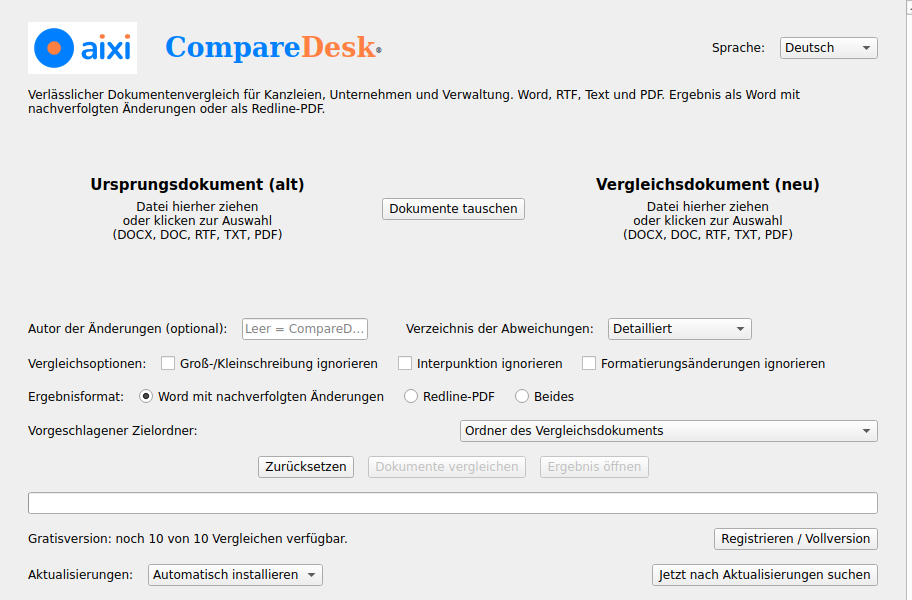
Comparison in four steps
Place both documents
Choose options and result format
Click “Compare documents”
Open and review the result
The functions in detail
Original and comparison document
Drag the older version (original) into the left box and the newer version (comparison) into the right box, or click a box to choose a file. Allowed formats are DOCX, DOC, RTF, TXT and PDF.
Swap documents
Swaps the original and comparison documents in case you placed the versions in the wrong order.
Author of the changes
Optional. The name entered here appears as the author of the tracked changes in the Word result. If left empty, CompareDesk is used as the author.
Schedule of differences
Determines how detailed the schedule of differences in the result is. “Detailed” lists every single change with its type and text.
Comparison options
You can exclude case, punctuation and pure formatting changes from the comparison. This hides insignificant differences so you see only substantive changes.
Result format
For Word and PDF comparisons you choose whether the result is created as a Word file with tracked changes, as a redline PDF or in both formats. The Word result can be edited further; the PDF is suited for sharing. For an Excel comparison the result is delivered as an Excel file.
Suggested target folder
Determines where the result is saved. The default is the folder of the comparison document. If the target file is locked, a running number is added; if write permission is missing, a fallback folder is used.
Compare documents and open result
“Compare documents” starts the comparison; progress is shown in the bar below. When finished, “Open result” opens the created file. “Reset” clears the selection for a new comparison.
Free version and registration
This line shows how many of the ten free comparisons remain. Via “Register / full version” you enter your e-mail address and licence key and unlock unlimited use.
Updates
CompareDesk checks for new versions automatically. You can choose whether updates are installed automatically. “Check for updates now” checks immediately for a new version.
Language
At the top right you choose the language of the interface and the result files. CompareDesk is available in nine languages.
Important note on the result
The comparison is performed at text level. Scanned documents without a text layer are processed by locally executed text recognition (OCR); if both documents are scans, the comparison is carried out line by line against the printed image. There, the result depends on the quality of the source and may be incomplete. A change comparison that is only visually depicted in a PDF is treated as ordinary text. Always review the result before releasing legally binding documents; it does not replace review by a qualified person.
Which file formats can I compare?
Word files (DOCX, DOC), RTF, TXT, PDF and Excel (XLSX). You receive the result as a Word file with tracked changes or as a redline PDF; for an Excel comparison the result is delivered as an Excel file.
Are my documents uploaded?
No. The comparison runs entirely on your own computer. Your documents do not leave your workstation.
How does the free plan work?
You can run ten full comparisons in total for free and without signing up. After that, a licence unlocks unlimited use.
Is there a macOS version?
CompareDesk is currently available for Windows. A macOS version is in preparation.
office@aixi.com